Firefox Screen Recorder: firefox screen recorder tips, extensions, and tools
Explore the firefox screen recorder options for high-quality captures. Learn extensions, native tools, and tips for effortless recording.
Firefox Screen Recorder: firefox screen recorder tips, extensions, and tools
Trying to describe a browser bug over email is one of those universally frustrating experiences. We've all been there—whether you're a developer, a QA tester, or on the support team, the pain is real.
Why You Need a Firefox Screen Recorder
Explaining a complex technical issue with text alone just doesn't cut it. It leads to long, confusing email chains, misunderstood steps, and that dreaded response from engineering: "cannot reproduce." This whole cycle wastes an incredible amount of time. A Firefox screen recorder completely changes the game by bridging that communication gap. It turns an abstract bug report into concrete, visual proof that anyone on the team can understand in seconds.
Having the ability to quickly capture exactly what's happening on your screen is a genuine superpower. It provides undeniable evidence of an issue, wiping out any ambiguity and fast-tracking the entire debugging process.
More Than Just Bug Reporting
While hunting down bugs is a huge reason to use a screen recorder, its value goes far beyond that. Creating training materials is another killer application. Think about it: a product manager can record a quick walkthrough of a new feature for the sales team, or a support agent can create a mini-tutorial to help a customer solve a problem. This visual, show-and-tell approach is almost always more effective than dense, written documentation.
In fact, one of the most common reasons to use a Firefox screen recorder is for building out clear, easy-to-follow guides and tutorials through effective Screen Recording for Training.
The benefits of weaving screen recording into your daily workflow are pretty obvious:
- Crystal-Clear Context: A video shows exactly what happened. It captures all those subtle user interactions, mouse movements, and weird timing-related glitches that are nearly impossible to describe in writing.
- Save Time and Effort: You can dramatically cut down on the time you spend writing out detailed reproduction steps. Check out our guide on crafting the perfect bug report for more tips on this: https://monito.dev/blog/bug-report-template
- Get Everyone on the Same Page: Recordings are simple, shareable assets. They get developers, designers, and project managers aligned instantly, without any confusion.
A single 30-second screen recording can easily provide more clarity than a 500-word bug report. It's a simple change that can save hours of back-and-forth communication.
Firefox's Role in the Recording World
Firefox has always been a major player when it comes to browser-based media capture. Its early and solid support for the Media Recorder API was a big deal, allowing developers to build recording features right into their web apps without needing clunky external plugins.
By May 2016, this API was already available to an impressive 65% of all desktop internet users globally, thanks to support in Firefox 30+ and other browsers. This really laid the foundation for the sophisticated tools we have today. Because of Firefox's strong focus on privacy and web standards, there's a specific need for recording tools that work smoothly within its environment, making a dedicated Firefox screen recorder a must-have for any modern web professional.
Choosing Your Firefox Screen Recording Method
Picking the right way to record your screen in Firefox really comes down to what you’re trying to do. It’s easy to get overwhelmed by the options, but they mostly break down into four main camps. Each has its own balance of convenience, power, and technical depth. What works for a support agent making a quick tutorial is completely different from what a developer needs to squash a stubborn bug.
The trick is matching the tool to the task. For example, a browser extension is incredibly handy—it lives right in Firefox, ready for one-click captures. But it probably won't have the high-fidelity recording or system-wide power of a tool built into your operating system.
First, What Are You Trying to Accomplish?
Before you do anything else, get clear on your goal. Are you just trying to show a coworker how to use a new feature? Or are you meticulously documenting a bug for a developer ticket? The answer will point you in a completely different direction.
Sometimes a simple visual is the best way to sort this out.
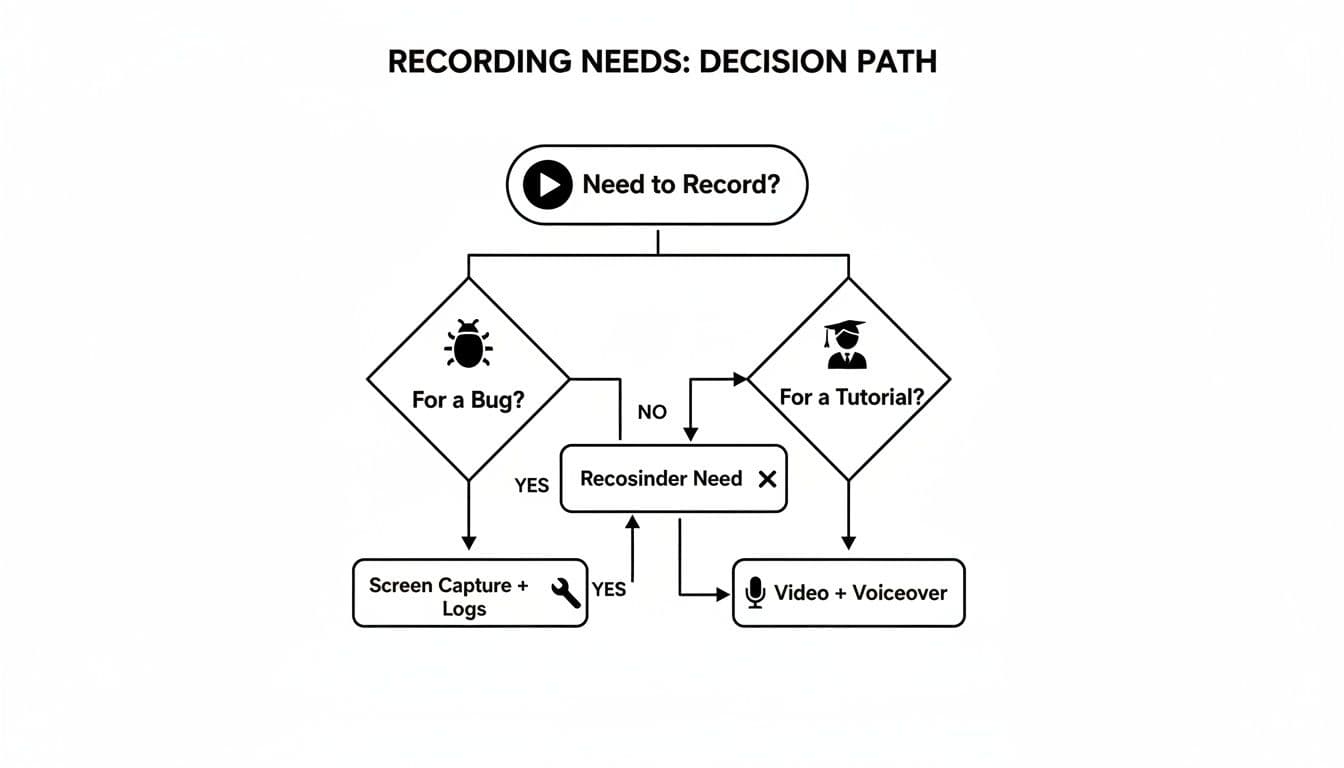
As you can see, bug reporting often demands more technical context, which pushes you toward developer-focused tools. On the other hand, creating tutorials is all about ease of use and simple editing, making extensions or web-based recorders a much better fit.
Firefox Screen Recorder Options at a Glance
To make the choice even clearer, let's compare the main approaches head-to-head. This table lays out the strengths and weaknesses of each method, helping you see at a glance which one is right for your job.
| Method | Best For | Key Advantage | Key Disadvantage |
|---|---|---|---|
| Browser Extensions | Quick captures, tutorials, and casual bug reports. | Convenience. Lives inside Firefox; no app switching needed. | Limited to browser activity; can impact performance. |
| Native OS Tools | High-quality recordings of the entire desktop or specific windows. | Power & Reliability. Already installed and uses system resources efficiently. | Lacks browser-specific context like console logs. |
| Web-Based Recorders | Instant, installation-free recording for simple tasks. | Accessibility. Works from any computer with Firefox; nothing to install. | Often has recording limits and requires a stable internet connection. |
| Developer Tools | In-depth bug reporting for technical teams. | Rich Context. Can capture console errors and network logs alongside video. | Higher learning curve and more complex setup. |
Ultimately, what makes the best screen recording software is how well it fits your specific needs. For many of us using Firefox daily, a good extension just hits that sweet spot. You get a seamless way to capture web content without ever having to leave your browser.
For the vast majority of day-to-day tasks, like creating a quick how-to for a teammate or grabbing a simple UI glitch, a well-chosen Firefox add-on is almost always the fastest and most efficient solution.
However, if you're dealing with a system-wide problem where Firefox is misbehaving with other apps, a native OS recorder is your best bet. It sees everything on your desktop, giving a much fuller picture of what's going wrong. The best Firefox screen recorder is the one that slots right into your workflow, whether you’re a QA tester, a developer, or a product manager.
Tapping into Firefox Add-ons for Quick Recordings
For a lot of us, the easiest way to grab a screen recording is right from the browser itself. The real magic of a Firefox screen recorder add-on is its convenience. It just sits there in your toolbar, ready to go with a single click. There's no need to hunt for another app or break your flow, which is perfect when you need to capture something right now.
Let’s walk through a common scenario. Imagine you're a QA tester and you've just stumbled upon a nasty rendering bug on a development site. You need to get a clear, concise video over to the engineering team and attach it to a Jira ticket. This is where an add-on shines.
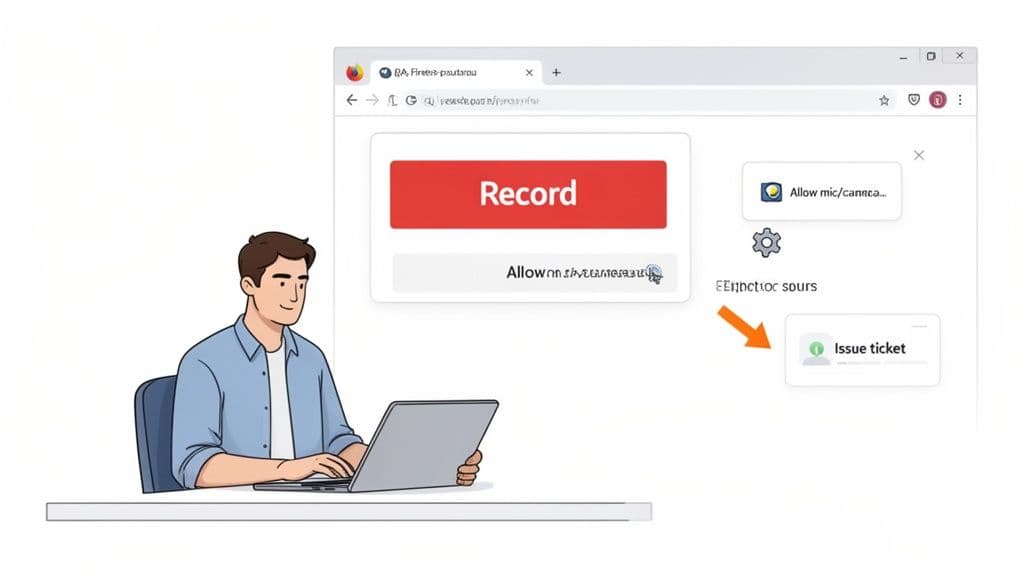
Finding and Vetting the Right Add-on
Your first stop should always be the official Firefox Add-ons marketplace. A quick search for "screen recorder" will give you a ton of options. Before you install the first one you see, take a minute to check if it's trustworthy.
Here’s what I always look for:
- Solid User Ratings: I won't touch anything with less than 4 stars, especially if it has a good number of reviews.
- Recent Updates: Look at the "Version information." If the developer is actively maintaining it, that’s a great sign. An add-on that hasn't been updated in a couple of years might not play well with the latest version of Firefox.
- Sensible Permissions: Firefox will tell you what the add-on wants to access before you install it. A screen recorder obviously needs to see your screen and maybe use your mic. Be skeptical if it asks for things that don't make sense, like reading your browsing history on every single site.
A good extension respects your privacy. It should only ask for the permissions it absolutely needs to function. Always take a second to read that permission request before you click "Add."
Setting Up Your First Recording
Once you've installed your chosen add-on, you'll probably want to tweak its settings. For our bug report example, we want a clean and professional-looking video, not a recording of a chaotic desktop with personal notifications popping up.
These are the settings I’d adjust:
- Recording Target: The best option here is almost always to record a specific Browser Tab. This keeps the video focused squarely on the bug and cuts out all the other clutter.
- Audio Source: If you need to explain the steps to reproduce the bug, select your microphone. Otherwise, just disable the audio. It’ll keep the final file size much smaller.
- Video Quality: Crank this up to the highest setting, usually 1080p. You want the developers to see every visual detail clearly. A frame rate of 30 FPS is plenty for a bug report and helps keep the video file from getting too big.
With your settings locked in, hit record, walk through the steps that trigger the bug, and then stop the capture.
The market for screen capture software is absolutely booming—it's projected to hit $9.58 billion in 2024 and climb to $10.92 billion in 2025. A big reason for this is how powerful modern browser APIs have become. Firefox has long supported the Media Recorder API, which means a good Firefox screen recorder can do more than just capture video; some can even grab technical details like console logs. For bug reporting, that’s a game-changer. You can find more insights on screen recording trends on SuperAGI.
Exporting for Maximum Impact
After you stop recording, the add-on will likely show you a preview and some export options. The MP4 format is your best bet for a Jira ticket—it’s universally supported and gives you a nice balance between video quality and file size.
Give the file a clear, descriptive name like login-button-rendering-bug-ff-125.mp4. Now you have unambiguous proof of the issue, ready to be dragged and dropped right into the bug report, which helps speed up the entire fix cycle.
Using Your Computer's Built-in Recorder with Firefox
Sometimes the best tool for the job is the one you already have. You don’t always need a fancy browser extension to create a clean, no-fuss Firefox screen recording. Your computer’s operating system comes with powerful, built-in utilities that work surprisingly well.
This is my go-to method when I need to show more than just the browser window—for instance, demonstrating how Firefox interacts with another program on my desktop. Since these are native tools, they're light on system resources, which often means smoother recordings compared to a browser-based tool, especially if you're working on a machine with less memory.
Kick Off a Recording in Seconds
The real beauty here is speed. Everything is built around simple keyboard shortcuts you can hit without thinking. There’s no setup or configuration required—just press the keys and you're rolling.
- On Windows (10 & 11): The Xbox Game Bar is what you'll use. Just press Win + Alt + R to start and stop recording. The key is to make sure your Firefox window is the active one.
- On macOS: The Screenshot toolbar does the trick. Hit Shift + Command + 5 to pull up the controls. From there, you can choose to record your entire screen or drag a box around just the part you need.
These shortcuts are perfect for capturing something that happens fast, like a weird bug or a quick workflow, without fumbling through menus. By default, your videos will usually land right in your main Videos or Movies folder.
A Few Things to Keep in Mind
While using your OS recorder is incredibly convenient, there are a couple of quirks to be aware of. The biggest one is keeping the right window in focus. For example, if you’re using the Windows Game Bar and you click outside of Firefox, it will stop recording because it's designed to capture just one app at a time.
File size is another thing to watch. These tools tend to record in high quality, which sounds great but can create enormous video files. A simple five-minute HD recording can easily balloon to over 500 MB. That’s not exactly ideal if you need to quickly upload it to a bug report or share it on Slack. You'll likely need to run it through a compression tool afterward.
My best advice? Always do a quick test run. A 10-second recording is all it takes to make sure your mic is working and you’re actually capturing the Firefox window you intend to. It’s a tiny step that can save you from having to re-record a whole process.
Ultimately, your OS recorder is a reliable workhorse. It’s a straightforward way to get a high-quality Firefox screen recording without installing yet another piece of software on your system.
Advanced Recording for Developers and QA
If you're a developer or a QA engineer, you know that a video of a bug is often just the tip of the iceberg. Seeing a visual glitch is one thing, but understanding the why behind it—the technical context—is what really matters. This is where a standard Firefox screen recorder falls short and a more sophisticated approach is needed for real debugging efficiency.
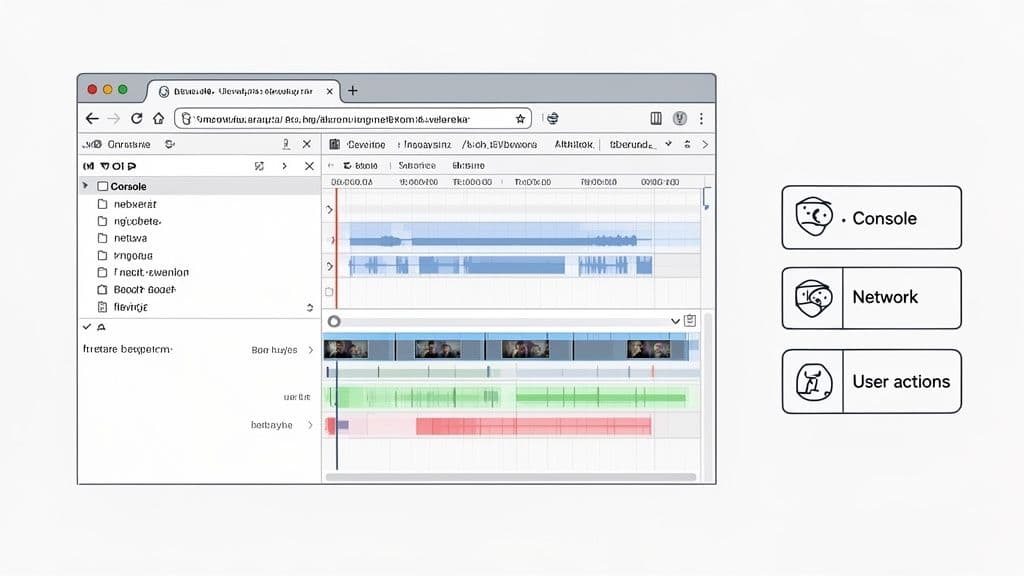
The old-school method is a bit of a juggling act. You fire up Firefox, hit F12 (or Ctrl+Shift+I on Windows/Linux, Cmd+Option+I on macOS) to open the Developer Tools, and then dock the panel to the side. After that, you'd start your OS-native screen recorder and try to capture both the website and the console in the same frame.
Capturing the Full Technical Story
This hands-on approach does let you record the visual bug right alongside crucial diagnostic data. As you reproduce an issue, the video captures any errors popping up in the Console tab or shows what’s going on in the Network tab, which is a lifesaver for tracking down failed API calls or slow assets.
For instance, you could record a button that does nothing when clicked, while your video simultaneously shows a nasty TypeError in the console. That direct link between action and error saves the engineering team a ton of guesswork.
But let's be honest, this manual workflow is clunky. It's a pain to manage, especially on a laptop screen. The video files get big, fast. And the developer who gets the video still has to pause, squint at the recording, and manually type out error messages. It’s slow, tedious, and leaves way too much room for error.
The real challenge isn’t just recording the screen. It's packaging that recording with all the relevant technical logs into one cohesive, easy-to-use report.
Modern Tools for a Better Workflow
This is exactly why modern bug reporting tools were created. Instead of you manually wrangling different windows, these tools plug right into your browser and do all the heavy lifting for you, becoming the ultimate Firefox screen recorder for technical teams.
When you record a bug with a dedicated tool, it automatically grabs everything you need:
- A high-quality screen recording showing the exact user interaction.
- All console logs—errors, warnings, and info messages—from the session.
- A full record of network requests, usually as a HAR file. You can learn more by reading our guide on how to open a HAR file.
- A step-by-step breakdown of user actions like clicks and keyboard input.
All this data gets bundled into a single, shareable link. A developer can open the report, watch the video, see the exact console error that fired at the 2-second mark, and inspect the failed network request without ever switching tabs. This synchronized context is a total game-changer, transforming vague bug reports into clear, actionable tickets and slashing debugging time.
Common Questions About Firefox Screen Recording
When you're trying to record your screen in Firefox, a few common questions always seem to surface. Maybe you're a developer trying to show a colleague a stubborn bug, or perhaps you're a project manager putting together a quick tutorial for the team. Let's clear up some of the most frequent sticking points.
Can I Record My Screen Directly in Firefox Without an Extension?
This is a big one. People often wonder if Firefox has its own one-click screen recorder hidden away somewhere. The short answer is no, not really—at least not in the way most of us imagine.
Firefox provides the engine for screen recording through its MediaRecorder API, which is what allows browser-based tools to capture your screen in the first place. But Firefox itself doesn't offer a built-in user interface to start and stop a recording. To actually record, you'll need to use a tool that taps into that technology.
Your main options are:
- Firefox Add-ons: Extensions that live right in your browser, giving you a convenient recording interface.
- Web-Based Recorders: Websites that use the browser's built-in capabilities to let you record without installing anything.
- OS-Native Tools: Your computer’s own recorder (like the Windows Game Bar or macOS Screenshot tool) can easily capture the Firefox window from the outside.
Why Is My Firefox Screen Recording Lagging?
There's nothing worse than a choppy, lagging video. Nine times out of ten, this is a classic case of an overworked CPU. Your computer is trying to render a complex web page, run the recording software, and encode video all at the same time, and it’s struggling to keep up.
The most effective fix for lag is to reduce the workload on your system. Before recording, close any unnecessary applications, browser tabs, and background processes to free up resources for the screen capture.
If that doesn't solve it, check your recording settings. You probably don't need to record in 4K. Dropping the resolution to a perfectly clear 1080p or lowering the frame rate from 60 FPS to a standard 30 FPS can make a huge difference in performance. It also helps to make sure your computer's graphics drivers are up to date so your hardware can pull its weight.
How Do I Record Console Logs with My Screen Capture?
For developers and QA testers, a screen recording of a bug is good, but a recording with the console logs is gold. It provides the context needed to understand what's happening under the hood.
The old-school way is to open Firefox's Developer Tools, dock the console to the side of your browser window, and then use your computer’s built-in screen recorder to capture the entire screen. This works, but it's clunky and you have to get everything lined up just right.
A much better approach is to use a tool built specifically for debugging. These tools are designed to capture your screen, all console output, and network requests at the same time. Everything is then bundled into a single, synchronized session replay. This is the new standard for creating bug reports that developers can actually solve quickly. To learn more about what makes a report truly effective, check out our guide on how to write bug reports that developers will love.
Ready to stop wasting time on messy bug reports? Describe the flow to Monito and its AI agent reproduces it in a real browser, capturing a session video, screenshots, console logs, network activity, and every step it took, then hands you a structured bug report with steps to reproduce. Try it free at https://monito.dev.