How to Write Bug Reports That Developers Actually Read
Learn how to write bug reports that get noticed and resolved faster. Discover practical tips for crafting clear, actionable reports with real-world examples.
How to Write Bug Reports That Developers Actually Read
To write a bug report that actually gets fixed, you need a few key ingredients: a clear title, exact steps to make the bug happen again, a simple breakdown of what you expected versus what actually happened, and all the technical details. A great report is like a perfect roadmap for a developer—it takes out all the guesswork and lets them replicate and crush the issue fast. Getting this right means quicker fixes, a happier team, and a better product for everyone.
Why Better Bug Reports Mean Faster Fixes
Let's be real: a vague bug report is a developer's worst nightmare. It's the digital version of leaving a note for a mechanic that just says, "The car is making a weird noise." That kind of ambiguity doesn't just annoy people; it creates real friction, wastes resources, and grinds your entire development cycle to a halt.
When a developer gets a ticket that says "Login is broken," their first move isn't to start coding a solution. It's to start an investigation.

All that back-and-forth just to clarify the basics is a massive time sink. In fact, research shows that 41% of developers say their single biggest obstacle to fixing bugs is not being able to reproduce them. Vague reports directly contribute to this, wasting precious hours that could be spent building new features. You can dig deeper into the challenges developers face from bug reporting research.
Moving Beyond Vague Reports
A well-crafted bug report isn't just another task on a to-do list; it's a powerful communication tool that turns a frustrating problem into an actionable solution. Think of it as the difference between just telling someone a destination and giving them turn-by-turn GPS directions. One gets them in the general area; the other guarantees they arrive efficiently.
When your team masters how to write effective bug reports, you'll see immediate benefits:
- Slash reproduction time: Clear steps and context mean developers can see the bug for themselves on the very first try.
- Improve triage accuracy: A descriptive title and well-defined severity help product managers prioritize the right fixes at the right time.
- Boost team morale: Taking the guesswork out of the equation reduces developer frustration and builds a more collaborative bridge between QA, support, and engineering.
The goal of a bug report is simple: empower an engineer to reproduce the issue without needing to ask a single follow-up question. Every piece of information you provide gets them closer to a solution.
The Anatomy of a Stellar Report
A truly effective bug report has several key components that work together to paint a complete picture of the problem. Here's a quick look at what makes a report developer-ready.
Anatomy of an Effective Bug Report
| Component | Why It Matters | Quick Tip |
|---|---|---|
| Clear, Descriptive Title | Helps with triage and allows anyone to understand the issue at a glance. | Include where the bug is and what is happening. |
| Concise Steps to Reproduce | This is the roadmap. If a developer can't follow it, they can't fix the bug. | Be specific. List every single click, input, and action in order. |
| Expected vs. Actual Results | Clearly defines the failure by showing the gap between intent and reality. | Use a simple "What I expected:" and "What actually happened:" format. |
| Visuals (Screenshots/Videos) | A picture is worth a thousand words. A video is worth a million. | Use annotations like arrows or boxes to highlight the exact problem area. |
| Environment Details | Bugs can be browser, OS, or device-specific. This context is crucial. | Include browser version, operating system, and screen resolution. |
| Console & Network Logs | Provides the under-the-hood technical clues developers need for debugging. | Capture these logs while you are reproducing the bug. |
Each of these elements plays a critical role in turning a vague complaint into an actionable ticket that gets resolved quickly.
Thankfully, modern tools have made this process much easier. For instance, an AI QA agent like Monito can automate the tedious parts: its agent runs the flow in a real browser and captures console logs, network activity, screenshots, and every step it took. This lets your team spend less time documenting and more time building, making communication bottlenecks a thing of the past.
Writing Titles That Get The Right Attention
Think of your bug report's title as its first impression. In a crowded Jira or Linear board, it's often the only thing a developer or product manager sees at a glance.
A vague title like "Login broken" is easy to ignore. Why? Because it lacks any real information. It forces someone to stop what they're doing, click into the ticket, and start digging just to figure out what the actual problem is. That friction is a killer for productivity.
The Anatomy of a High-Impact Title
A great bug report title is a crystal-clear, one-line summary of the entire issue. It should instantly tell a teammate where the bug is, what went wrong, and maybe even what caused it, all without them needing to open the ticket.
Think of it like a newspaper headline. It needs to grab attention and communicate the essential facts immediately. Adopting a consistent formula for your titles helps create a backlog that's not just a list of problems, but a scannable, searchable, and organized to-do list for the whole team.
A great bug report title answers three questions at a glance: Where did it happen? What went wrong? and Under what conditions? Answering these immediately elevates your report from a vague complaint to an actionable issue.
From Vague to Valuable: A Simple Formula
Let's break down how to turn a weak title into a powerful one. I’ve found the most effective format is simple: [Feature/Location] - [Problem Summary]. This structure provides instant context.
Here's a classic, unhelpful title we’ve all seen before:
- Before:
Profile Page Error
This tells us next to nothing. What kind of error? Which part of the page? Is it happening for everyone? It’s a guaranteed way to get your report pushed to the bottom of the pile.
Now, let's apply our formula to give it the detail it needs:
- After:
[User Profile] - Attempting to Upload a PNG Avatar Results in a 404 Error
See the difference? It’s night and day. Anyone reading this instantly knows:
- Where: The User Profile section.
- What: Uploading a PNG avatar is the action that fails.
- The Result: It’s throwing a 404 error.
This level of clarity means the report can be triaged and assigned to the right engineer in seconds. It’s a small change in process that has a massive impact on how quickly bugs get fixed.
Alright, you've got a killer title. Now for the most important part: the body of the report. This is where you lay out the evidence, step-by-step, leaving absolutely no room for interpretation.
Think of it this way: your goal is to write a set of instructions so clear that anyone on your team—a developer, another QA person, even a product manager—can follow them to the letter and see the exact same bug you did. No guesswork allowed.
If your steps are vague, you're just creating a ticket that's going to bounce back and forth with questions. "Which user account did you use?" "What did you type into that field?" Every question is a delay. Let's eliminate that from the start.

Start From A Clean Slate
Here's a pro tip that solves a shocking number of "could not reproduce" issues: always start from a neutral, universally accessible state. This ensures the person testing your report isn't running into the bug (or failing to) because of their own cached data, cookies, or a weird session state.
The easiest way to do this? Tell them to start in a new incognito or private browsing window. It’s a simple instruction that wipes the slate clean and gets rid of a ton of potential variables.
From there, document every single click, keystroke, and navigation.
- Specify URLs: Don't just say "Go to the homepage." Write "Navigate to
[your-website-url]." - Detail Clicks: Avoid "Click the button." Be precise: "Click the blue 'Add to Cart' button for the 'Premium Widget'."
- Document Inputs: If a form is involved, spell out exactly what you entered. For example, "In the 'Email' field, enter
testuser@example.com."
Being this granular isn't overkill; it's essential. You’re essentially writing a recipe. If you leave out an ingredient or a step, you can't be surprised when the cake doesn't turn out right.
The Power of Expected vs. Actual
Once you've guided them to the scene of the crime, you need to clearly state what went wrong. Phrases like "it's broken" or "it didn't work" are basically useless.
The gold standard for describing a bug is the "Expected vs. Actual" format. This simple structure is incredibly effective because it immediately draws a line between what the software should have done and what it actually did. It removes any personal opinion and frames the problem in a way a developer can instantly understand and act on.
By framing the bug as a conflict between expected and actual outcomes, you're not just reporting a problem; you're defining the precise conditions of the failure. This simple shift in communication can cut debugging time in half.
Let's see how this plays out in a real-world scenario.
A bad, vague example:
- The checkout button is broken. When I click it, I get an error.
This report is a dead end. It forces the developer to put on their detective hat just to figure out what the problem even is.
A good, actionable example:
- Expected Behavior: Clicking the "Complete Purchase" button on the checkout page should redirect the user to the "Order Confirmation" screen.
- Actual Behavior: After clicking the "Complete Purchase" button, a red error toast appears with the message "Error: Payment Gateway Unresponsive" and the user remains on the checkout page.
See the difference? The good example paints a full picture. The developer knows what success looks like and exactly how the current behavior falls short. This level of clarity is the foundation of a great bug report.
Documenting The Full User Journey
Sometimes, a bug doesn't show up after one or two simple clicks. It might only surface after a very specific and complex sequence of user actions. Maybe it happens only after a user adds three particular items to their cart, applies a specific discount code, and then tries to change their shipping address.
When that's the case, your reproduction steps need to tell that whole story.
- Open a new incognito window and navigate to the e-commerce homepage.
- Search for "Product A" and click "Add to Cart."
- Navigate to the "Special Offers" page and add "Product B" to the cart.
- Proceed to the checkout page.
- In the "Discount Code" field, enter
SAVE20and click "Apply." - In the "Shipping Information" section, click the "Edit Address" button.
Each step builds on the last, creating a precise narrative that leads the developer right to the bug. When you write bug reports this thoroughly, you're not just pointing out a problem—you're handing your team a roadmap to the solution.
A bug report without technical context is like telling a mechanic your car is making "a weird noise" and then walking away. They need more to work with, and so do developers.
A bug rarely happens in a vacuum. It’s usually the result of a very specific, perfect storm of conditions—a certain browser version, a particular screen size, a network request that timed out. Simply describing what you saw is only half the story. The real magic happens when you provide the backstage clues that let a developer see why it happened.
This isn't just about being helpful; it's about saving a massive amount of time and money. Some teams spend a staggering 30-50% of their time on bug fixes and unplanned rework, a huge productivity sink often caused by incomplete reports. As detailed in a report on the hidden costs of software bugs, every minute a developer spends chasing down missing information is a minute they aren't building new features.
So, let's get into the technical clues that turn a frustrating bug report into a quick fix.
What’s The User Environment?
The first thing a developer will often ask is, "What was your setup?" A bug that crashes the app on Chrome for Mac might work perfectly fine on Firefox for Windows. Without knowing the exact environment, a developer is stuck trying to guess what went wrong.
Every single bug report should, at a bare minimum, include these details:
- Browser and Version: "Chrome" isn't enough. "Chrome 125.0.6422.113" is what they need.
- Operating System (OS): Get specific. "macOS Sonoma 14.5" or "Windows 11 Pro."
- Screen Resolution: UI elements can look fine at one size and completely break at another. Note the viewport size, like "1920x1080."
- Device Type: Make it clear if you're on a desktop, laptop, tablet, or mobile phone.
Gathering this information by hand for every report is a pain. You have to dig through settings menus, which is tedious and easy to forget. This is where tools that capture context automatically are a lifesaver—they grab this data with every report, so the dev team never has to ask.
A bug that's "unreproducible" is often just a bug that's missing its environmental context. Providing the OS, browser, and screen size is the fastest way to confirm if an issue is universal or specific to a certain setup.
What Are The Console Logs Saying?
Next up: the console logs. Think of the browser's JavaScript console as a black box recorder for your website. When something goes wrong—especially with buttons, forms, or other interactive elements—the console often spits out error messages that explain exactly what broke.
For a developer, a console log is a breadcrumb trail leading right to the problem. An error like Uncaught TypeError: Cannot read properties of null can point them to the exact line of faulty code. To find these logs, you'll need to open your browser's developer tools (usually with F12 or Cmd+Option+I on a Mac) and click on the "Console" tab. Ignoring these is like leaving the most important clue behind at a crime scene.
Did The Network Falter?
Finally, we have network activity. Modern web apps are constantly talking to servers in the background to fetch data, save your changes, or load new content. These conversations are called network requests or API calls, and when one of them fails, things break.
Ever clicked "Save" on a form and nothing happened? It’s likely the network request to the server failed. The "Network" tab in your browser's developer tools logs every single one of these requests, showing you crucial details like:
- Status Codes: Did the server respond with
200 OK(success) or an error like404 Not Foundor500 Internal Server Error? - Request Details: What information was the browser trying to send to the server?
- Response: What did the server send back (or did it send anything at all)?
This is the key to figuring out if the bug is a front-end issue (in the browser) or a back-end issue (on the server).
Trying to collect all of these technical details for every single bug report is not only slow but also incredibly easy to mess up. This is where the difference between the old way and the new way really becomes clear.
Here’s a quick breakdown of just how much easier life gets when you automate this data collection.
Manual Reporting vs Automated Capture
| Information to Capture | Manual Process (The Hard Way) | Automated Capture (The Smart Way) |
|---|---|---|
| Environment Details | Manually check browser version, OS, and screen size settings and type them out. | Automatically captured and attached to the report in one click. |
| Console Logs | Open DevTools, reproduce the bug, copy and paste the logs into the ticket. | All logs from the session are automatically captured and included. |
| Network Activity | Open DevTools, switch to the Network tab, reproduce the issue, and screenshot the logs. | All network requests and their responses are recorded and attached. |
Learning to include these technical clues is a skill that makes you an invaluable part of any team. But using a tool that automates it all? That transforms bug reporting from a chore into a superpower, ensuring your developers can stop investigating and start fixing.
Using Visuals And Setting The Right Priority
You've laid out the technical details and the reproduction steps, but the real magic happens when you add visuals. Honestly, a good screenshot or a quick video can communicate a problem faster and more clearly than paragraphs of text ever could. It’s the difference between describing a car crash and showing the photo.
Think of it from the developer's perspective. They’re trying to reconstruct a scene based on your notes. Visuals give them the complete picture instantly, especially for UI glitches, wonky alignments, or anything where what you see is the actual problem. It removes all the guesswork.
Choosing The Right Visual Evidence
Not all bugs call for the same type of visual. You need to match the evidence to the crime. Is it a static issue or something that happens over time?
- Screenshots are perfect for static issues. Got a typo, a misaligned button, or a weird color? A screenshot with a quick annotation—just a circle or an arrow—points directly to the problem. It’s simple, fast, and impossible to misinterpret.
- Screen recordings are essential for dynamic bugs. If a bug only shows up after a specific sequence of clicks, like a dropdown menu that vanishes or a form that errors out on submission, you absolutely need a video. It captures the entire user flow and shows exactly what led to the failure.
This flowchart breaks down the decision process for grabbing the right technical context for your report.
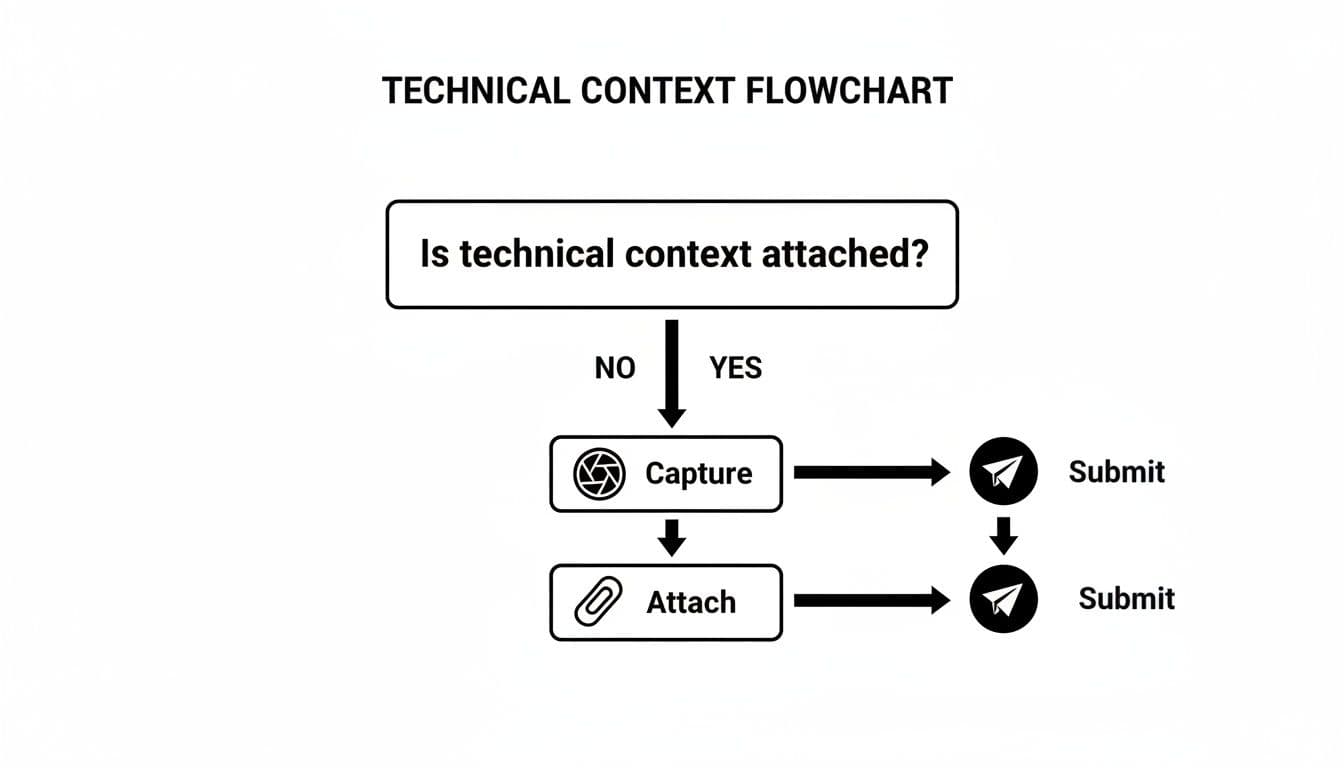
It’s a simple reminder: if your report is missing context, take a second to capture it before you hit submit. That one small step will save everyone a ton of back-and-forth later.
Understanding Severity Versus Priority
Okay, you’ve documented and visualized the bug. The last piece of the puzzle is helping the team understand its impact. This is where Severity and Priority come in. People mix these up all the time, but they answer two very different questions.
Severity is about the bug's technical impact—how badly does it break the system? Priority is about business urgency—how soon does it need to be fixed?
Getting this right is what separates a good bug report from a great one. It’s the key to effective triage, making sure your team’s precious time is spent on what truly matters. The cost of a bug skyrockets the later it's found in the development cycle. One study found that a bug fixed after release can be 100 times pricier than one caught during design. If you're interested, you can learn more about the rising cost of bugs found later in the development process.
Here’s how I think about it in practice:
-
Severity (Impact): How bad is the damage?
- Critical: Total showstopper. The app crashes, data is lost, or a core feature like checkout is completely blocked.
- Major: A key feature is broken, but there might be a workaround. It's painful, but not a complete roadblock.
- Minor: A non-critical feature isn't working right, or a UI element is out of place. Annoying, but not a dealbreaker.
- Trivial: Purely cosmetic. Think of a typo on a page most users will never see.
-
Priority (Urgency): How fast do we need to jump on this?
- High: All hands on deck. This needs a fix now because it's blocking other work or affecting tons of users.
- Medium: Needs to be handled in the current sprint or development cycle. It’s on the radar.
- Low: Good to fix, but can wait. We'll get to it when we have capacity.
So, a typo on the terms and conditions page? That’s Trivial Severity and Low Priority. But a checkout button that doesn't work for anyone? That’s a Critical Severity, High Priority fire that needs to be put out immediately. Nailing this distinction is how you write reports that actually get things done.
Common Questions About Writing Bug Reports
Even with a perfect template, you're going to run into weird situations. The real world is messy. Knowing how to handle those tricky edge cases is what separates a good bug report from a great one. Let's tackle some of the most common questions I hear from teams in the trenches.
What do you do with those infuriating, intermittent bugs? The ones you know are real but can't reproduce on command. The key here is to become a detective. When it does happen, gather as much forensic evidence as you can.
You might not have a perfect, 100% reliable set of steps, but you can still create an incredibly valuable report. Document everything you can remember about the user's session: what they were doing just before the bug appeared, how long they'd been using the app, and any other strange behavior they noticed. This is where session replay tools are worth their weight in gold, capturing the exact conditions when you can't.
Finding The Right Balance of Detail
Another question that comes up all the time is, "How much detail is too much?" You need to be thorough, but you don't want to bury a developer under a novel they won't read.
The sweet spot is giving them just enough information to replicate the bug and understand its impact. Nail the core components: a sharp title, precise repro steps, the expected vs. actual behavior, and the essential technical context.
A great bug report is like a well-organized toolkit. It has every tool a developer needs to fix the problem, with no extra junk cluttering the workspace. The goal is to be concise yet complete.
Anything extra, like your personal theories about the root cause, should probably be left out unless you have solid proof. Stick to the facts of what happened, not your guesses about why it happened.
Integrating Tools into Your Workflow
Finally, how do you make bug reporting a smooth part of your process instead of a tedious chore? The best way is to find tools that plug directly into your project management software, like Jira or Linear.
Manually copying and pasting information from one platform to another is just asking for mistakes and wasted time. An integrated tool lets you file a bug directly from your web app, and it instantly shows up as a perfectly formatted ticket in your team's backlog.
- For QA Teams: This means you can stay focused on testing without constantly breaking your flow to write up a report.
- For Support Teams: You can escalate a customer issue into a developer-ready ticket in seconds, without any manual data entry.
This kind of tight integration makes sure nothing gets lost in translation and that your developers get consistent, high-quality reports every single time.
Monito automates much of this process. Describe the flow in plain English, and its AI agent reproduces it in a real browser and hands you a structured bug report with steps to reproduce, screenshots, console logs, and network requests, which you can route to your team through webhooks, the API, or GitHub Actions. Stop writing reports and start fixing bugs faster at https://monito.dev.
Article created using Outrank